A New Integrate, Part 2: Simplifying Structure and Information Architecture
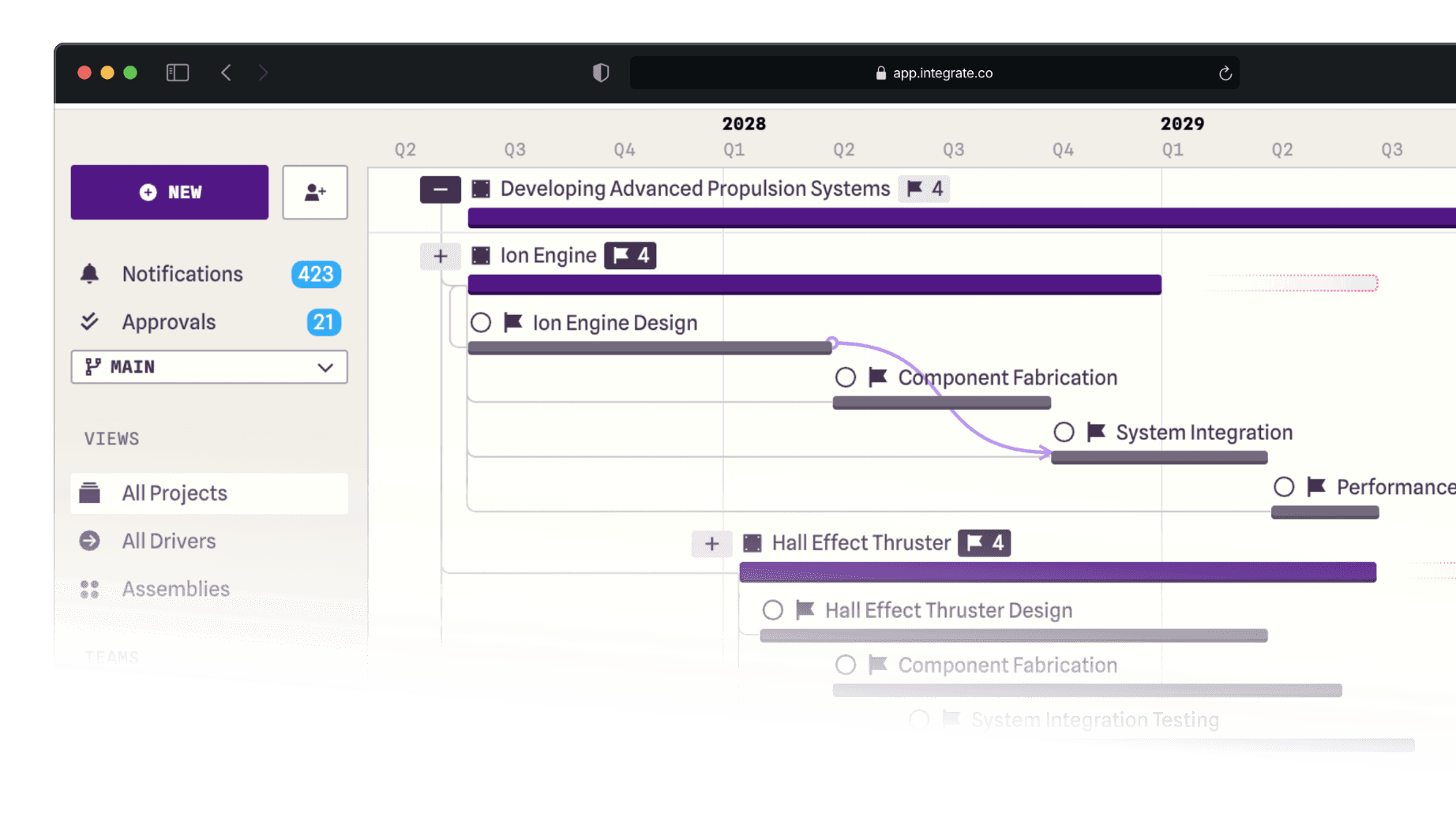
In the first post in this series, we introduced the visual side of our ongoing UI refresh: new colors, refined typography, and a closer look at why we chose yellow (not green) to represent external collaborators. That update focused on how Integrate looks and how visual cues help communicate meaning more clearly.
This second post is about something deeper.
While visual changes are often the most noticeable, the most impactful updates we’re making are happening at the structural level. These changes aren’t just about UI. They’re about information architecture, clarity, and reducing friction in how you understand and navigate your work in Integrate.
From “Builds” to “Projects”
The largest change you’ll notice is a terminology shift: what were previously called Builds are now called Projects. To understand why, it helps to look back.
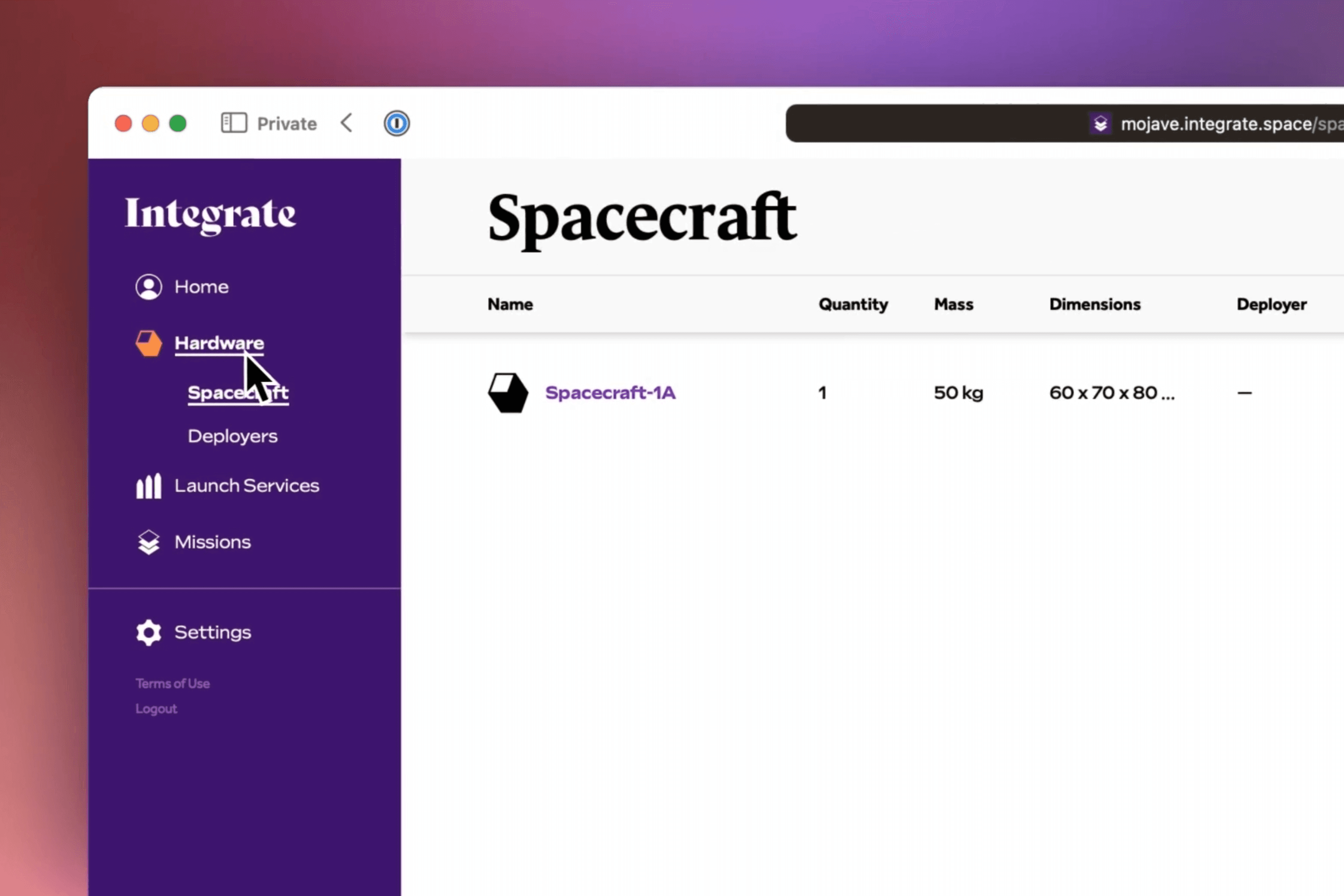
In the earliest versions of Integrate, our data model was highly domain-specific. We used terms like spacecraft, missions, and launch vehicles. That made sense at the time, given our initial audience and use cases. But as Integrate grew, so did the variety of systems our users wanted to plan and manage.
We expanded beyond spacecraft into subsystems and components; antennas, propulsion systems, control systems, solar panels, actuators, motors, and many other forms of hardware. At that point, we needed a broader, more flexible term to represent “the thing you’re building.” That’s where Builds came from.
The term was a nod to how hardware teams actually talk:
“How’s that spacecraft build going?”
“Where are we on the subassembly build?”
We shipped that change about a year ago, and it served us well. But over time, we learned something important. For many users, especially those coming from project management, scheduling, or operations backgrounds, “build” wasn’t intuitive. We found ourselves repeatedly explaining that a build was essentially just a project. That extra explanation created unnecessary friction. Eventually, the reality became clear: our users already thought of builds as projects.
So we decided to make that explicit. From this point forward, you’ll no longer see the word Builds in Integrate. Everything is now called Projects: a simpler, more universal term that better matches how most teams think about their work.
A Clearer Side Nav, Built Around Views
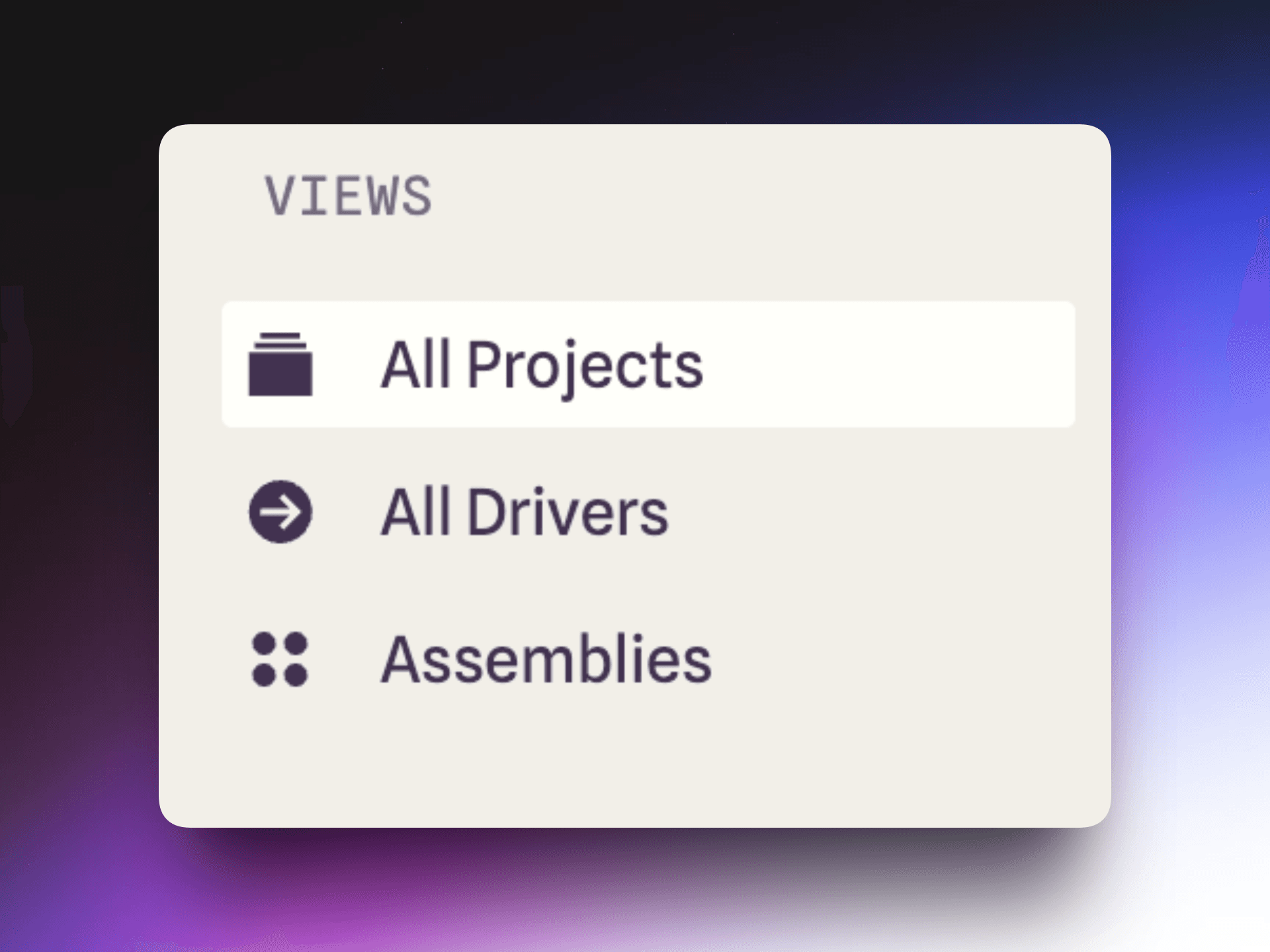
You’ll notice this change most prominently in the left-hand side navigation, which has been reorganized to reflect how users actually interact with their data. At the top of the nav, you’ll now see a new section called Views.
This is us formally acknowledging something users have been telling us for a long time: most of the time, you’re not switching what data exists—you’re switching how you want to see it.
Default Views
We now ship with two default views:
All Projects
This replaces what was formerly called Timeline. When you click into All Projects, you’re simply seeing every project in your workspace—and you can filter it down or choose how to frame it:
Gantt
Table
Team workload roll-up
All Drivers
This familiar view is still here, letting you isolate and focus on the key drivers behind your schedule without starting from the full project list.
These aren’t new concepts—but they’re now framed more clearly as views, not destinations or modes.
Saved Views (Formerly Saved Filters)
Underneath Views is where your Saved Views live (previously called saved filters). Saved views let you:
Define a filter configuration
Choose how it’s displayed
Recall it later with a single click
We’ve also cleaned up a lot of legacy default views that existed mainly because older versions of Integrate tried to anticipate every possible use case. Instead of preloading the nav with assumptions, we’re giving you control over what belongs there.
Saying Goodbye to “Programs”
One important (but quieter) change: we’ve removed the concept of Programs as a distinct top-level object. Programs were originally intended to represent the highest level in a hierarchy, but in practice, they caused confusion. There was no consistently shared definition, and users weren’t always sure how a program was meaningfully different from a top-level project.
Now, there’s no hard distinction. If you want to treat something like a program, you can simply:
Filter down to the projects you care about
Save that configuration as a view
That saved view will live in your side nav, exactly where you need it. This shift reflects a broader philosophy change: we’re no longer assuming how you organize your work.
Scenarios, Where They Belong
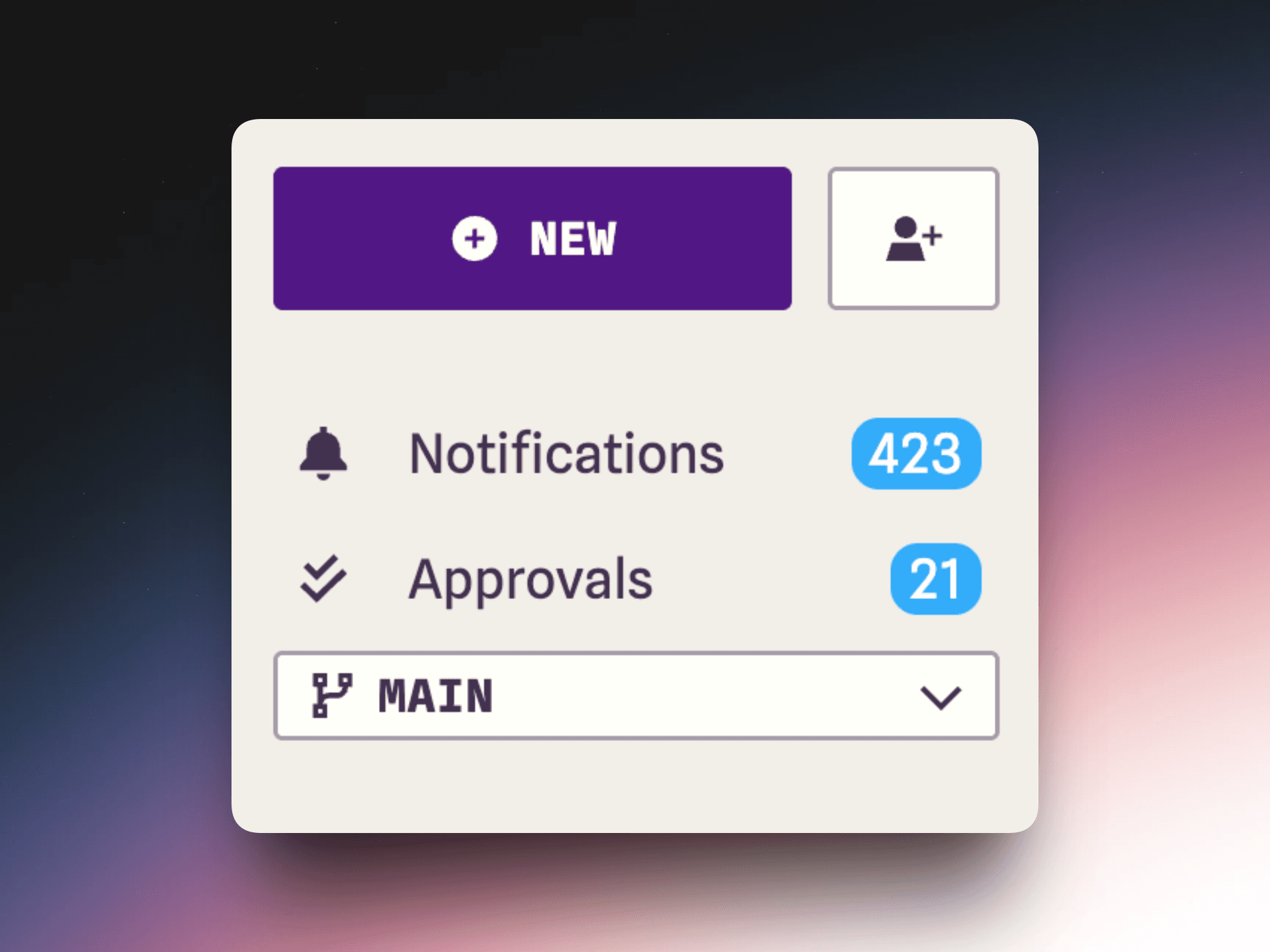
You’ll also notice that the scenario toggle (labeled "Main") now lives in the left-hand side nav. Scenarios apply globally across Integrate, so it makes sense for them to live alongside views and navigation, not buried elsewhere in the interface. This layout allows you to:
Select a scenario
Apply a view
See everything update together in one vertically aligned flow
It’s a small change, but it reinforces a clearer mental model of how Integrate works.
Where This Is All Heading
These changes to terminology, navigation, and information architecture are part of a larger goal: to make Integrate simpler, more flexible, easier to understand, and more user-controlled. And we’re not done yet.
Stay tuned for Part 3, where we’ll wrap up the UI refresh and talk about how all of these changes come together into a more cohesive, modern Integrate experience. We're always improving, so please share your feedback with us along the way.
Andrew Sloan
VP of Product & Co-Founder